Last Updated: November 24, 2026
Quick Summary
A camera backup workflow is the repeatable process a photographer uses to create and verify multiple copies of image files from capture to archive. Build it on the 3-2-1 rule: three copies on two media types with one off-site, copying cards at set checkpoints during the event and verifying every transfer with a checksum before formatting.
- Set recovery point and recovery time objectives in advance and test the workflow against them before the event.
- Pull and copy cards at three checkpoints: ceremony end, dinner service, and before you leave.
- Set dual card slots to backup mode rather than overflow mode for true redundancy.
- A card is safe to reuse only when the local copy is verified, a second copy exists, and the off-site copy has started or completed.
- Cloud backup keeps versions, while cloud sync deletes the cloud copy when you delete the local file.
Table of Contents
- Why a Camera Backup Workflow Decides Whether the Event Survives
- The 3-2-1 Backup Rule for Photographers, Applied to Event Files
- How to Back Up Photos During a Wedding and Other Live Events
- In-Camera Redundancy: Dual Card Slots and Simultaneous Recording
- Ingest, Verify, and Organize: The Post-Event Transfer Stage
- The Best Photo Storage for Photographers: Drives, NAS, and Cloud
- Backblaze for Photographers: Where Off-Site Backup Fits
- Building Your Backup Plan Before the Next Gala
- Frequently Asked Questions
Why a Camera Backup Workflow Decides Whether the Event Survives
A camera backup workflow is the repeatable process a photographer uses to create and verify multiple copies of image files from capture to archive.
The stakes are simple. A gala happens once. A wedding happens once. There is no reshoot.
Backup is often treated as a gear list, but it works better as a decision tree you run under pressure, at 11 p.m., with a client waiting on next-morning delivery.
The 3-2-1 Backup Rule for Photographers, Applied to Event Files
The 3-2-1 backup rule for photographers means three copies of every file, on two different types of media, with one copy off-site. For event work, that translates to: the card, a local drive, and an off-site or cloud copy.
Here is how it maps to a real event:
- Copy one: the original card, kept in the camera or a card case
- Copy two: an external SSD or drive, made on site
- Copy three: cloud or off-site drive, uploaded before you format anything
The rule works because it removes single points of failure. A drive dies, a card corrupts, a bag gets stolen. Three copies survive all three.
How to Back Up Photos During a Wedding and Other Live Events
Back up photos during a wedding by pulling cards at set checkpoints and copying to a second device before you keep shooting. Setting those checkpoints around card changes also helps with preventing data loss in tethered shooting, where a clear backup routine keeps each capture accounted for.

Set recovery targets before the event
Two numbers drive the whole plan. Recovery point objective (RPO) is how much work you can afford to lose. Recovery time objective (RTO) is how long you can be down before it threatens delivery. Recovery targets should be set in advance and tested against the workflow before the event. Write both numbers down and test the workflow against them before the event, not during it.
A time-based event-day workflow with explicit checkpoints
- Before coverage: confirm both card slots are set to simultaneous recording, format cards in-camera, test the reader and SSD, and confirm the cloud backup is active on the archive drive. Note the free space on every device.
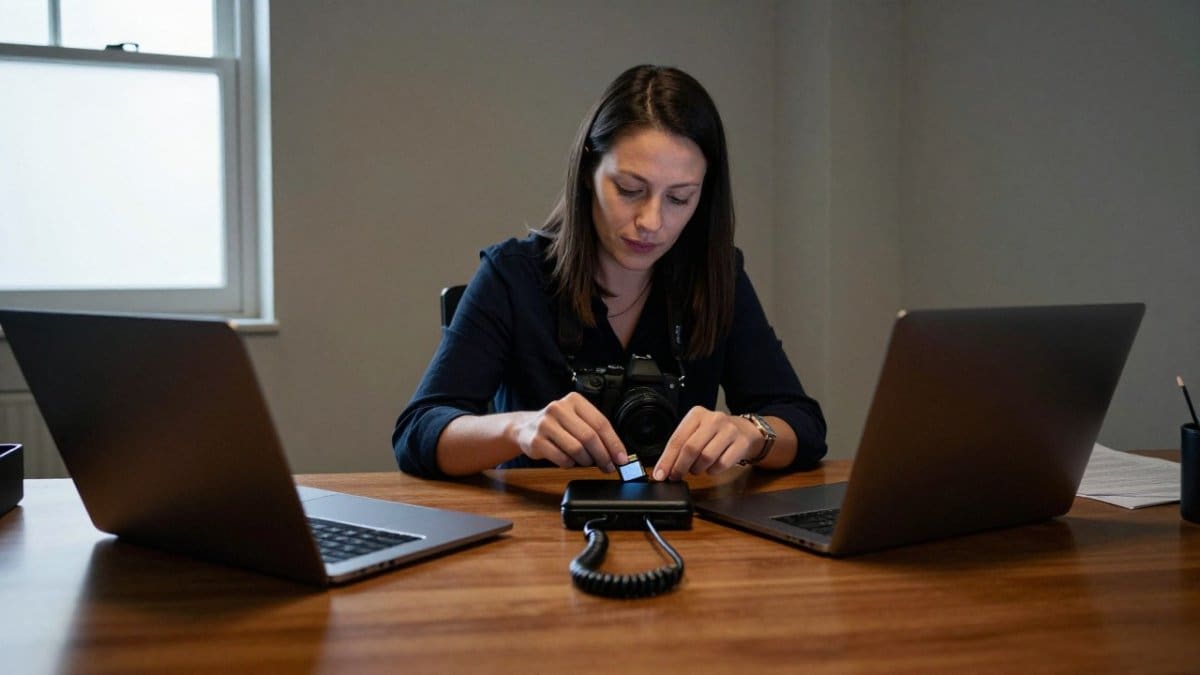
- Checkpoint one, ceremony end: power the camera off, pull the primary card, copy it to the SSD, verify the file count matches, then swap in a fresh card. Do not format the pulled card yet.
- Checkpoint two, dinner service: copy the reception cards while guests eat. This is the natural low-activity window; use it.
A card is safe to reuse only when three conditions are met: the local copy is verified, a second copy exists, and the off-site copy has started or completed. Until then, treat the card as the only copy of that block of coverage.
Verify transfers, don’t assume them
Drag-and-drop gives you no proof. Use backup or ingest software that runs a checksum comparison so each copied file is confirmed against the source. Then compare file counts between card and destination, and open a sample from each folder to confirm the files load.
Power the camera off before pulling a card, since removing a card mid-write can corrupt it.
A failure-handling plan
Interruptions happen. Have a response ready:
- Interrupted transfer: do not delete or format anything. Re-run the copy to a fresh folder and compare counts; if the software supports it, re-run the checksum.
- Unreadable card: stop using it, try a different reader and cable, and copy what is readable to a new destination before attempting any repair. Keep the original untouched until you have a verified copy.
- Mismatched file counts: treat the card as the source of truth, re-copy the missing files, and do not format until counts match.
Connectivity-independent contingencies
Venues often have poor Wi-Fi, limited power, or no signal. Plan for it: carry a power bank and spare batteries, keep a second local drive so the off-site copy can wait until you have connectivity, and never make the cloud upload the only thing standing between you and a formatted card. If the venue has no usable internet, the off-site copy happens when you get back, so the original cards stay in the case until it does.
In-Camera Redundancy: Dual Card Slots and Simultaneous Recording
Dual card slots let a camera write each shot to two cards at once, which reduces the risk of losing an image to a single card failure. Set simultaneous recording before the event starts, not during it.
Two setup choices matter:
- Backup mode: every file goes to both cards, which is the safer option for event work.
- Overflow mode: card one fills, then card two, which uses fewer cards but provides no true redundancy.
If you are choosing a body for event work, dual slots should be non-negotiable. Our guide to which cameras work best for corporate event photography covers the models that handle this well.
Ingest, Verify, and Organize: The Post-Event Transfer Stage
Ingest means copying files from cards to your working drive through a card reader, then verifying each file before you format the card. Verification is the step most photographers skip.
Run it in this order:
- Copy with backup software, not drag-and-drop.
- Run a checksum verification so the software confirms each file matches the source.
- Rename and sort into folders by event, date, and camera.
- Open a sample from each folder to confirm file integrity.
- Only then format the card.
A clean folder structure and consistent file naming save hours at delivery. For a deeper walkthrough of the full transfer-to-delivery process, read our fast turnaround photography workflow for events.
The Best Photo Storage for Photographers: Drives, NAS, and Cloud
The best photo storage for photographers combines fast local drives for active work with a NAS or cloud tier for long-term retention. No single device does both jobs well.
| Storage Type | Best For | Watch Out For |
|---|---|---|
| External SSD | On-site and travel copies | Small capacity, easy to lose |
| Desktop hard drive | Working archive at the desk | Single point of failure |
| NAS | Shared studio access and redundancy | Needs a second off-site copy |
| Cloud backup | Off-site protection | Upload speed limits |
A common approach is one SSD for on-site copies, a NAS at the studio, and a cloud service for the third copy. For nonprofits managing years of event images, see how a nonprofit should organize its photo archive.
Capacity planning for real event volumes
Estimate before you buy. A workable method is to multiply the number of images by the average file size for your format, then add headroom for the second card slot and the off-site copy.
- Count the images: use your own history from past events rather than a guess.
- Size the files: JPEGs are small, while RAW files are several times larger; high-resolution bodies push file sizes up further. Check the actual average from a recent event.
- Multiply and add copies: total capacity equals images times average file size, times the number of copies you keep (card, local, off-site), plus working headroom.
Multiply your typical image count by your typical file size and the number of copies you keep, then multiply by your number of events per month to estimate your monthly growth rate, which should drive drive and cloud sizing.
Cost planning
Costs fall into three buckets: local drives (one-time purchase, replaced as they fill or age), NAS (hardware plus drives, plus a second off-site copy), and cloud backup (usually a recurring subscription, sometimes with storage tiers). Pricing depends on the configuration you choose, so check current prices for your own setup at purchase time. The planning rule is to size for your monthly growth rate plus a buffer, and to budget the off-site copy as a recurring cost, not a one-time one.
Rotation and retention
Rotate drives before they fill, not after. Keep at least one recent drive offline and off-site, and retire drives on a schedule rather than waiting for failure. Set a retention policy for client files, how long you keep originals, when you delete, and how you delete securely, and write it into your client agreement.
Privacy and security for client data
Event images are client data. Encrypt drives that leave the studio, control who can access the NAS, and check what your cloud provider does with uploaded files. For retention and secure deletion, decide in advance how long files are kept and how they are wiped. The FTC’s guidance on protecting personal information is a useful baseline for handling client data, and it applies to photo archives as much as to any other business record.
Backblaze for Photographers: Where Off-Site Backup Fits
Backblaze is an off-site backup service that can run in the background and upload files to the cloud automatically.
Where it fits in the workflow:
- Install it on the drive that holds your working archive.
- Let it run overnight after each event.
- Confirm the upload completed before you clear the local copy.
Upload speed can be a limit, since large galleries can take days to upload on a slow connection, so starting the upload the night of the event helps.
Watch out: cloud backup is not the same as cloud sync. A sync service deletes the cloud copy when you delete the local file. A backup keeps versions.
Building Your Backup Plan Before the Next Gala
Build your backup plan before the event, not during it.
Your pre-event checklist:
- Both card slots set to simultaneous recording
- Two formatted cards plus spares in the case
- Card reader, laptop, and SSD charged and tested
Clients often ask how fast images arrive. Compare next-morning delivery options so your backup plan matches the promise you make. For gala-specific questions on coverage and delivery, check our gala photographers FAQ.
Privacy matters here too. Encrypt drives that leave the studio, and set a retention policy for client files.
The event will not wait for your workflow to catch up. Build the plan now, and the next gala runs on rails.
A single failed card can undo months of planning for a gala or conference.
Frequently Asked Questions
What is the 3-2-1 rule for backing up event photos?
The 3-2-1 backup rule for photographers means keeping three copies of every image file, on two different types of media, with one copy stored off-site. In practice: the card or drive you shot on, a local external hard drive or SSD at the studio, and a cloud or off-site drive. Each copy covers a different failure: card corruption, drive failure, and theft or fire. Apply it to RAW files before you format a single card.
When should photographers copy photos from memory cards?
Copy cards at the first safe checkpoint, not at the end of the night. For a wedding or gala, that means a card dump during dinner or a quiet break, plus a full ingest the moment you return to the studio. Never format a card until the files exist in two verified locations. Waiting until the next morning leaves hours where a single lost or damaged card has no replacement.
Is cloud storage enough to back up event photos on its own?
No. Cloud backup is the off-site leg of a camera backup workflow, not the whole thing. Upload speed limits how fast a 64GB card reaches the cloud, and venue Wi-Fi often cannot handle it at all. Keep a local copy on an external drive or SSD, then let cloud sync run overnight. Backblaze can serve as that third copy because it can run in the background once the local ingest is verified.
How long should photographers keep event photo backups?
Keep full-resolution backups for as long as your contract promises delivery and reprint access, and longer if the client may request archives. Many event photographers retain RAW files for one to three years and keep delivered JPEGs indefinitely on a NAS or archive drive. Check your agreement and any state record-retention obligations for corporate or government-adjacent clients before deleting anything.