Table of Contents
- Why Event Photographers Are Adopting AI Tools
- How AI Batch Photo Editing Software Transforms Your Workflow
- Maintaining Consistency in Event Photography with AI
- Culling, Color Grading, and Automated Retouching
- Ethical Considerations and Client Transparency
- Building a Hybrid Workflow: AI Plus Creative Control
- Choosing the Right AI Tools for Your Event Photography
- Frequently Asked Questions
Last Updated: September 27, 2026
Why Event Photographers Are Adopting AI Tools
According to Eventiere’s 2026 adoption report, 42% of event companies now use AI photo tools, up from just 18% in 2023. This shift isn’t hype. It’s survival.
Event photographers face a brutal reality: clients expect polished, consistent images within 24-48 hours, which is why using ai tools for event photo editing has become essential. A typical gala generates 1,500-3,000 shots. Using AI tools for event photo editing solves this bottleneck, compressing work that once took three weeks into overnight turnaround without sacrificing quality.
Photographers who adopt AI workflows deliver faster, maintain consistency across massive galleries, and win repeat business by meeting client expectations.
The real shift is psychological. Five years ago, AI editing felt like a shortcut, something to hide. Today, 95% of event teams expect to increase their reliance on AI tools, according to Bizzabo’s 2026 survey. It’s no longer optional, it’s the baseline.
How AI Batch Photo Editing Software Transforms Your Workflow
AI batch photo editing software learns your style and applies it to hundreds or thousands of images simultaneously. Set parameters once; the software handles the rest.
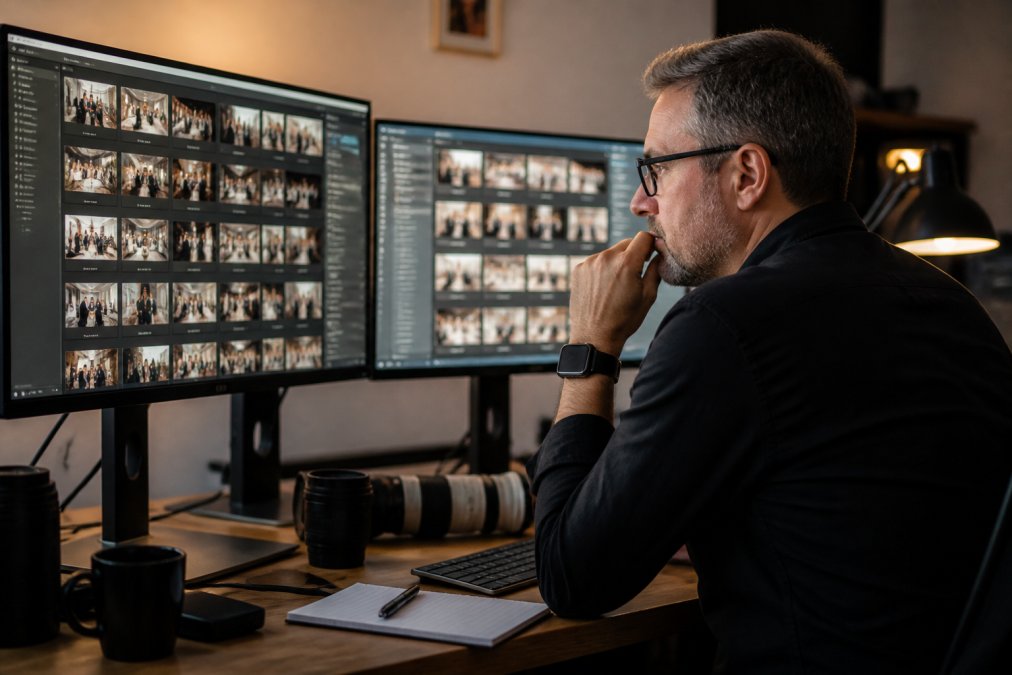
The efficiency gains are staggering. Research from Imagen AI’s 2026 analysis shows that AI batch editors deliver 96% time savings on editing workflows. A photographer who once spent 8 hours editing a 2,000-image event now finishes in under 30 minutes.
Here’s what actually happens in practice:
- You shoot the event and import raw files into your culling software
- AI flags and removes duplicates, severe motion blur, and closed eyes
- The remaining keepers get batch-processed with your preset style
- You review and make final adjustments in minutes, not hours
- Client deliverables are ready by morning
The software learns from your past edits and applies your signature look automatically across the entire gallery.
This multiplies your capacity without replacing your eye.
Maintaining Consistency in Event Photography with AI
Consistency separates professional work from amateur snapshots. Every image should feel like it came from the same photographer on the same day, despite shifting lighting conditions.
Manual editing creates inconsistency by default: fatigue causes color decisions to drift across a large gallery.
AI batch processing locks in your style. Once you establish baseline adjustments, every image gets treated identically, white balance, exposure, and artistic voice remain constant across the entire deliverable.
This matters to clients using images for annual reports, LinkedIn campaigns, and donor communications. Consistent editing elevates the entire narrative.
Automation eliminates tedious parts so you can focus on decisions that actually matter.
Culling, Color Grading, and Automated Retouching
Culling is where most photographers waste time: reviewing 3,000 images to delete 2,000 blurry, poorly composed, or redundant shots takes hours.
AI culling tools change the equation. According to FindMe.Photo’s 2026 comparison, dedicated AI culling software like Aftershoot and Narrative Select reduce initial culling time from several hours to under 60 minutes for a full event.
The software flags images with closed eyes, turned-away faces, or excessive motion blur. You review recommendations in minutes instead of hours.
AI batch editors like Imagen AI apply white balance corrections, exposure adjustments, and color grading presets automatically, eliminating manual curve adjustments across thousands of images.
Automated retouching handles skin smoothing, blemish removal, dust elimination, noise reduction, and background separation. Detailed creative retouching, removing photobombers, reshaping bodies, or adding dramatic lighting, still requires Photoshop or Luminar Neo, but 80% of work is now batch-processed.
Ethical Considerations and Client Transparency
Using AI editing raises questions about authenticity, manipulation, and client expectations. The solution is transparency before the shoot, not after.
AI tools can remove people, alter body shapes, add objects, or smooth skin to unreality. Event photography should be truthful documentation, not creative fiction.
What to tell clients upfront:
Build this into your pre-event consultation: “We use AI-powered tools for automated culling, color correction, and technical cleanup to deliver your gallery within 24 hours. We do not use AI to remove people, alter body shapes, or add elements that weren’t present at your event. Your images represent what actually happened.”
Most clients care about speed and consistency. Surprise discoveries about significant alterations break trust and trigger refund requests.
The legal layer:
Copyright and IP: Check your tool’s terms of service. Most reputable platforms (Adobe, Topaz, Luminar) grant you rights to edited output for commercial use. Smaller or free tools may retain rights to your images or claim ownership of AI-generated content.
Your contract should clarify: you retain copyright; the client receives a license for stated purposes; you reserve portfolio rights; AI-assisted edits are disclosed if requested.
Where to draw the line:
Use AI for workflow acceleration, not creative fabrication. Safe uses: culling, color correction, noise reduction, skin smoothing, and dust cleanup. Risky uses requiring explicit approval: removing/adding people, reshaping bodies, replacing backgrounds, or relighting. Document any creative alterations in your notes.
Building client trust:
Photographers who explain their AI workflow upfront, deliver fast, and maintain consistency win repeat business. Include in your delivery email: “Your gallery was edited using AI-assisted color correction and manual refinement to ensure consistency and quality. All images are authentic documentation of your event.”
Building a Hybrid Workflow: AI Plus Creative Control
The best photographers build hybrid workflows: AI for efficiency, human judgment for artistry. Culling (AI, 15 min) → Batch processing (AI, 60 min) → Quality review (human, 15 min) → Hero shot refinement (human, 30-50 images) → Final delivery (human). This reclaims hours while keeping you in control.
Choosing the Right AI Tools for Your Event Photography
The AI tools landscape is crowded, but the right choice depends on your workflow, hardware, and volume. Here’s what actually matters for event photographers:
| Tool | Best For | Processing | Integration | Learning Curve |
|---|---|---|---|---|
| Aftershoot | Culling + batch editing | Cloud-based | Lightroom plugin | Low |
| Imagen AI | Consistent style application | Cloud-based | Lightroom plugin | Low |
| Luminar Neo | Creative AI enhancements | Local (desktop) | Standalone or Photoshop plugin | Medium |
| Adobe Photoshop | Hero shot retouching | Local (desktop) | Standalone | High |
| Topaz Photo AI | High-ISO cleanup | Local (desktop) | Standalone or Lightroom plugin | Medium |
| FilterPixel | Quick culling + organizing | Cloud-based | Web-based interface | Low |
Understanding the processing trade-off:
Cloud-based tools (Aftershoot, Imagen AI, FilterPixel) upload your images to remote servers for processing. Advantages: you don’t need expensive hardware, processing happens in the background while you work, and updates are automatic. Disadvantages: slower for large batches if your internet is unreliable, potential privacy concerns with proprietary images, and per-image or monthly fees add up at scale.
Local processing tools (Luminar Neo, Topaz, Photoshop) run on your computer.
Hardware reality check:
If you’re shooting 2,000-image events weekly, your hardware matters.
For local processing: You need more muscle. Topaz Photo AI and Luminar Neo benefit from:
- GPU acceleration: An NVIDIA or AMD graphics card speeds up processing 5-10x compared to CPU-only. A $300-500 graphics card (RTX 4060 or equivalent) is a worthwhile investment if you’re processing thousands of images monthly.
- RAM: 16 GB minimum; 32 GB is ideal for batch processing without slowdown.
- Storage: Fast SSD storage (NVMe) for working files. Event galleries can be 100-200 GB raw files. A dedicated external SSD ($100-200 for 2 TB) keeps your main drive from choking.
- CPU: A modern multi-core processor (Intel i7/i9 or AMD Ryzen 7/9) handles batch operations faster.
Integration friction:
Real-world performance on event volume:
Here’s what photographers report for a typical 2,000-image event:
Aftershoot culling: 15-20 minutes to upload, 10-15 minutes for AI to process, 10 minutes to review and approve. Total: 35-50 minutes. Cost: $15/month subscription.
Building your stack:
Most professionals use a combination:
- Culling: Aftershoot or FilterPixel (15-30 minutes, removes 40-50% of images)
- Batch processing: Imagen AI or Luminar Neo (60-90 minutes, applies consistent style)
- Noise cleanup: Topaz Photo AI if needed (30-60 minutes for high-ISO shots)
- Hero shot refinement: Adobe Photoshop (5-10 minutes per image, 30-50 images)
- Final delivery: Export from Lightroom with metadata and color profiles
Cost-benefit math:
If you shoot 10 events per month (20,000 images), here’s the annual cost:
- Aftershoot: $180/year
- Imagen AI: $4,800-9,600/year (at $0.05-0.10 per image)
- Topaz Photo AI: $199 one-time
- Luminar Neo: $143/year
- Adobe Photoshop: $276/year (if not already subscribed)
Total: $5,600-10,300/year
Frequently Asked Questions
How much time can AI tools actually save on event photo editing?
AI batch photo editing software can reduce editing time by up to 96% compared to manual workflows. For example, culling an entire event’s photos typically takes several hours manually, but AI-powered culling tools like Aftershoot and Narrative Select can complete the same task in under 60 minutes. This dramatic time savings allows photographers to deliver final galleries faster, which is critical for press releases and donor communications needed the morning after an event.
What’s the best way to maintain consistency in event photography across hundreds of images?
Maintaining consistency in event photography relies on AI tools that learn your editing style and apply it uniformly across large batches. Imagen AI builds personalized profiles based on your past edits, then automatically applies your signature look to new galleries. Preset synchronization through Lightroom also ensures white balance, exposure, and color grading remain consistent. The key is setting up your AI profile once, then letting batch processing handle the rest, eliminating the inconsistencies that come from manual, image-by-image editing.
Are there ethical concerns with using AI to edit event photos?
Yes. Critics raise valid concerns about image authenticity, particularly when AI tools remove people from scenes or over-process lighting in ways that make photos appear artificial. The integrity of event documentation matters, your clients trust that the images accurately represent what happened. The solution is transparency: tell clients upfront which AI tools you’re using and for what purpose (culling, color correction, noise reduction). Use AI for efficiency and technical fixes, not for manipulating content. Reserve advanced retouching for hero shots where clients expect creative enhancement.
Which AI tools work best for high-volume event photography?
For culling and batch editing, Aftershoot ($15/month) and FilterPixel ($10/month) excel at processing thousands of images quickly. For maintaining consistent style across galleries, Imagen AI ($0.05 per image) learns your aesthetic and applies it automatically. For technical fixes in low-light events, Topaz Photo AI ($199 one-time) handles noise reduction and sharpening. Most professionals use a hybrid approach: culling with Aftershoot, batch color correction with Imagen, then Lightroom for final adjustments and metadata management. Choose based on your workflow bottleneck, culling, color consistency, or technical quality.